Articles | Photoshop blog | Photography blog | about me | e-mail

Helen Bradley - MS Office Tips, Tricks & Tutorials

Saturday, January 16, 2010

Outlook - create Your own Signature Business Card
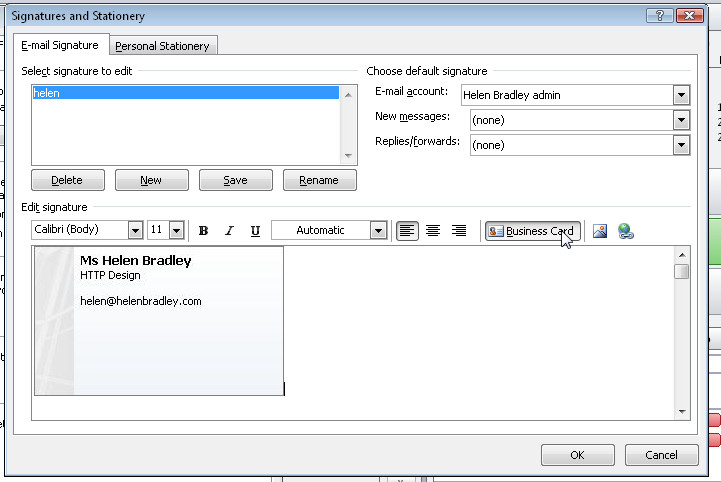
Add yourself to your Contacts list in Outlook 2007 so you can create a Business Card to send as an attachment to all your outgoing emails.

Once you have added yourself as a contact, choose Tools > Options > Mail Format > Signatures and chose the signature to attach the card to or create a new one.

Click New if creating a new card, and from the Business Card dropdown list, choose your Contact entry to attach it as a business card to each outgoing message.

Labels: , , ,

Add to Technorati Favorites

Thursday, January 7, 2010

Outlook 2007 - Empty Deleted Items automatically

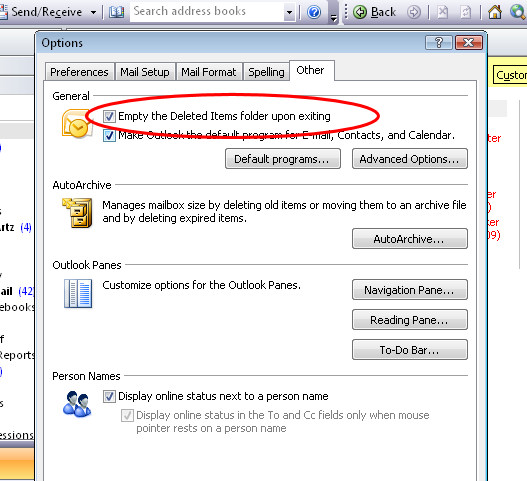
If you find you are always emptying your Deleted Items folder in Outlook 2007 before you exit the program, you can have Outlook do this automatically for you.

To do this, choose Tools > Options > Other tab. Enable the 'Empty the Deleted Items folder upon exiting' checkbox and click Ok.

Now you won't have to do this - just choose File > Exit and it will be done automatically.

Labels: , ,

Add to Technorati Favorites

Saturday, December 26, 2009

Outlook 2007 Display Saturday and Sunday

If your weekends are as full of activities as your weekdays are, you may want Saturday and Sunday to display in the Outlook 2007calendar all the time.

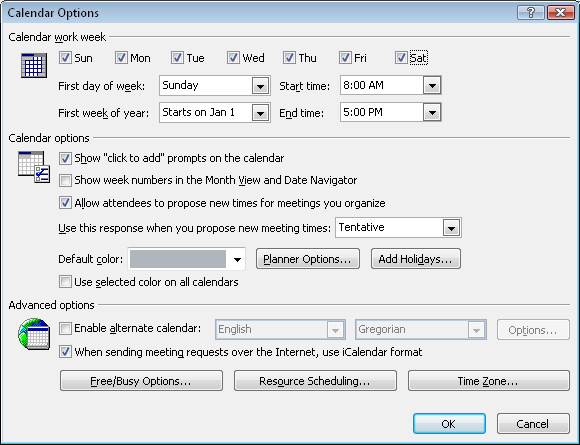
To permanently display Saturday and Sunday, choose Tools > Options > Preferences tab and click the Calendar Options button.

From the dialog select the checkboxes for both Saturday and Sunday and click Ok.This dialog is also useful for setting a non traditional work week. If you, like my friend Frank, work from Sunday to Thursday, you can set up your work week by selecting checkboxes for those days you actually work and disabling them for other days that are your "weekend" days.

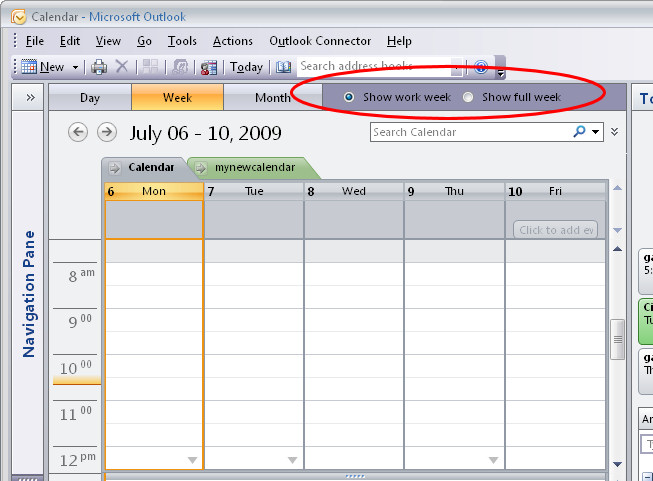
Only these days of the week will now appear in your Outlook 2007 calendar display when you have Show Word Week selected.

To toggle between viewing the Work week and the full week click the appropriate buttons on the Calendar toolbar.

If you have come to Outlook 2007 from an earlier version of Outlook, you should know that the old Compress Weekend Days option for showing Saturday and Sunday compressed into a single column is now no longer an option in Outlook 2007.

If you need to print calendars so that weekend days share a column, download and install the Calendar Printing Assistant for Outlook 2007 from here:
http://office.microsoft.com/en-us/outlook/HA101687211033.aspx

Labels: , , ,

Add to Technorati Favorites

Thursday, December 17, 2009

Outlook - Edit Received E-mail

Occasionally you might have a need to edit a message that you have received in Outlook 2007.

The message will be already in your Inbox so, to do this, open the message.

Now click the Message tab on the Ribbon and, from the Actions group, select Other Actions > Edit Message.

You can now edit the message and, to send it back to the sender, click Reply and to send it on to someone else, click Forward, type the recipient's address and click Send.

Labels: , , ,

Add to Technorati Favorites

Saturday, December 12, 2009

Outlook 2007 Calendar display your way

You already know you can look at your Outlook calendar by viewing one day, one week or a month at a time.

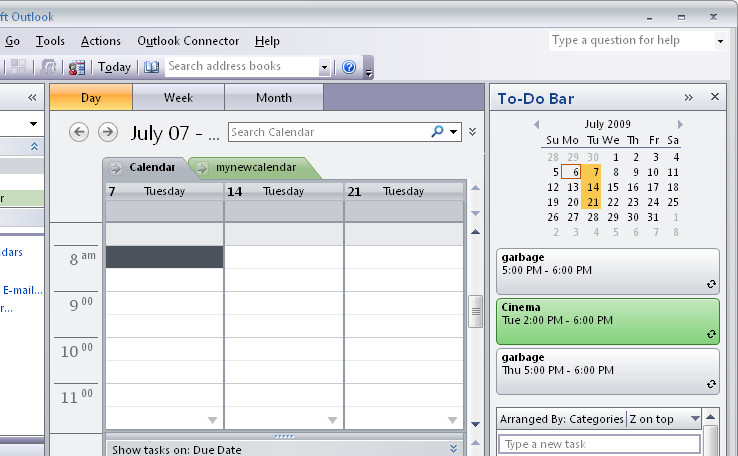
Did you know you can also view the calendar in other ways? So, for example, if you need to see your plans for the next three Tuesdays you can do this.

Make sure the To-Do Bar is visible and switch to Day view so you are seeing only one day. Click on the first day to view in the Calendar in the To-Do bar and then Control + Click on each other day to view and it will open up in the same display.

Labels: , , ,

Add to Technorati Favorites

Thursday, December 10, 2009

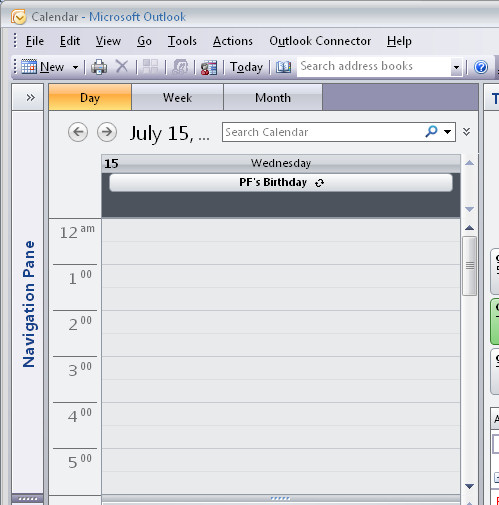
Outlook 2007 Remembers important Birthdays

If you’re one of those people who occasionally forgets important birthdays or anniversaries, then get Outlook to help you remember them.

To do this, add the person whose birthday or anniversary you need to remember as an Outlook contact in your Contacts list.

Click the Contact tab, from the Show group, click Details to display the details area of their contact data and type their birthday or anniversary in the place provided.

When you do this, these dates are automatically added to your calendar as events so you won't forget them.

If you need to set a reminder for the event, locate the day it happens on and double click the event and choose Open Series. On the Recurring Event tab set the Reminder to whatever suits you - if you need to organize presents and restaurant bookings then set the reminder to a few days before the event.

Labels: , , , ,

Add to Technorati Favorites

Thursday, October 29, 2009

Outlook 2007 create a new empty calendar

Sometimes you will need a new empty calendar in Outlook. You might need this if you're planning an event and you need to keep everything for the even separate from your own calendar.

Or you might need a blank calendar so you can print blank pages to complete by hand.

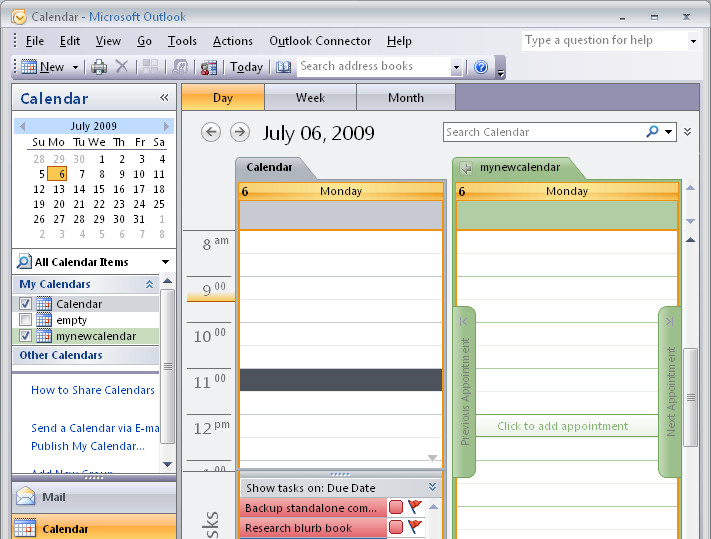
So, when you need a blank calendar you can easily create one in Outlook. Choose File > New > Folder and give your folder the name you wan to use for your calendar.

From the Folder Contains list choose Calendar Items, from the 'Select where to place the folder' list choose Calendar, and click OK.

Click the Calendar option to display your calendars and, in the list, your new calendar's name will appear.

You can click its checkbox to display it. If there is already one calendar visible, clicking its checkbox will display both calendars side by side or in overlay mode.

To change the display, right click the Calendar tab and choose either, View In Side-by-Side mode or View in Overlay mode.

Labels: , ,

Add to Technorati Favorites

Tuesday, October 20, 2009

Outlook 2007: Redirect replies to someone else

When you send and e-mail for someone else you may not want the replies to be directed to you. For example if a co-worker is out of the office and needs you to send an urgent email on their behalf - you will want replies to go to them, not you.

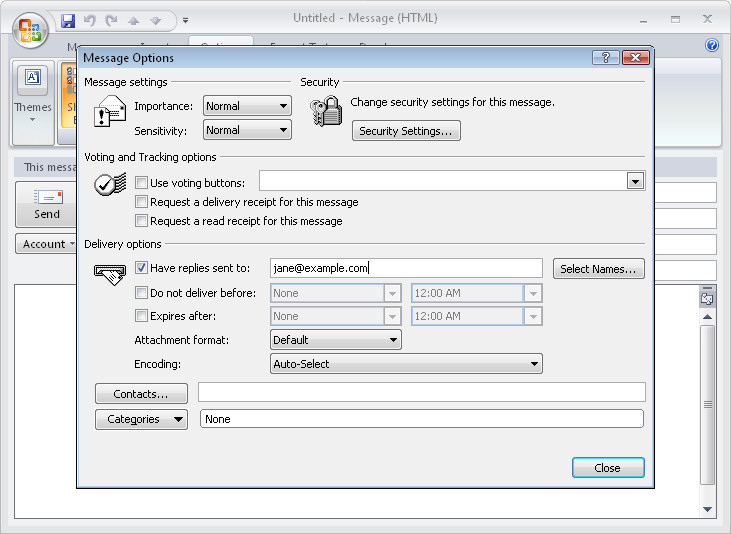
You can do this in Outlook 2007 from the New Message dialog. Click the Options tab and select the Direct Replies To option in the More Options group.

From the dialog, set the reply to address for this email and click Ok.

Now you can send the email but replies will go to where they are supposed to go.

Labels: , , ,

Add to Technorati Favorites

Thursday, October 15, 2009

Outlook 2007- set custom reminder sounds

When an Outlook appointment falls due, by default, Outlook is set up to do something to tell you about it. Exactly what it does depends on how it is setup.

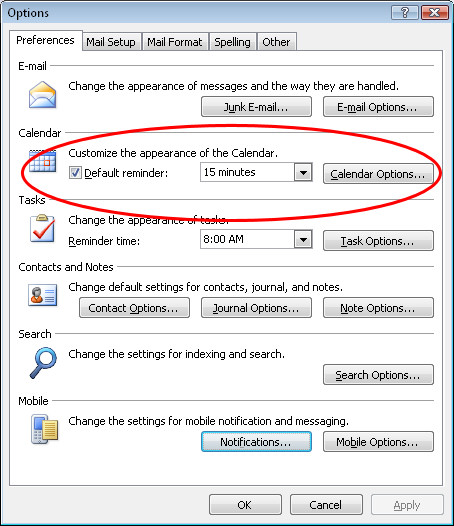
To change the default settings for all new appointments choose Tools > Options > Preferences tab and, in the Calendar area, enable the Default reminder checkbox and set up the amount of time before an appointment that you will receive a warning about it. 15 minutes is the default but, if you prefer it to be 30, for example, then set it to this.
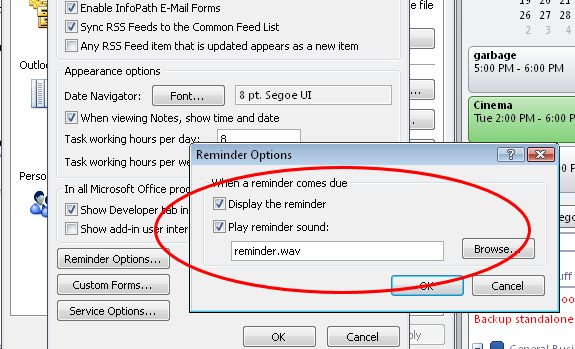
Choose the Other tab > Advanced Options > Reminder Options to set other options such as whether the reminder is displayed by default and whether a sound will be played and, if so, the WAV file that sounds.

Remember too, that you can use the Windows Sound Recorder to record your own custom sound to use.

Labels: , , , ,

Add to Technorati Favorites

Tuesday, October 6, 2009

Outlook Natural language Date Entry

With so many programs requiring you to do things their way, it's refreshing when you find a program that talks your language. Enter Outlook.

When you are setting up meeting dates in Outlook 2007 and earlier, you can use what is called "natural language" to specify the date.

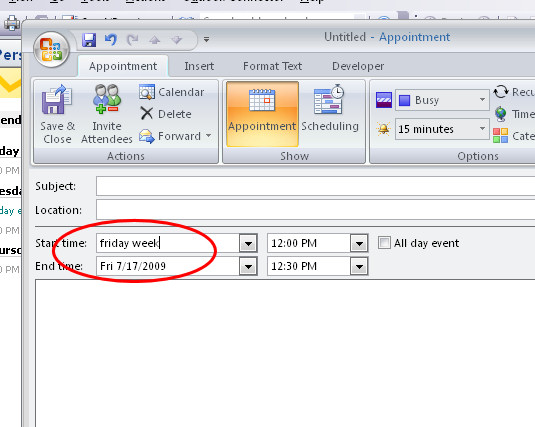
For example type 'Friday week', 'this Saturday', 'Christmas Day' or even 'second Monday in December' and Outlook understands what you mean and sets the appointment date to suit your needs.

This saves you having to know the numerical date or clicking open the calendar especially if you have meetings that are scheduled by the week day rather than by date.

Labels: , ,

Add to Technorati Favorites

Thursday, October 1, 2009

File Outlook 2007 Contacts your way

I have a lot of contacts whose nicknames mean more to me than their real names.

So, while I need to use their full name in their contacts entry in my Contacts list, I'd prefer to see them shown using their nickname so I recognize it better.

To do this, I'll open the person's entry in my contacts list and, in the 'File as' area type their nickname and choose Save and Close.

Now, whenever I look for their entry in the list, they're filed by the nickname that I associate with them and not names that aren't so recognizable.

Labels: , , ,

Add to Technorati Favorites

Tuesday, September 22, 2009

Outlook - Disable Contact Editing

By default in Outlook 2007 you can edit your contact information from any view including the Contact card view.

If you find yourself making changes by accident you can disable this feature so that contacts can only be edited by opening the Contact's information dialog.

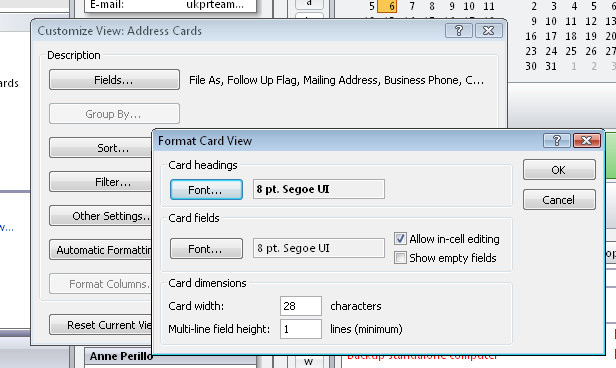
To do this, select the Contacts folder and display the view you don't want to be able to edit in. Choose View > Current View > Customize Current View > Other Settings and disable the 'Allow in-cell editing' checkbox.

Now you can look at the contacts but you won't be able to change them without switching to another view.

Labels: , ,

Add to Technorati Favorites

Wednesday, September 16, 2009

Outlook Send a Contact's details via Email

To share an Outlook Contact's details with someone else you can send it via e-mail.

This lets you get the details you have recorded about a contact to someone else without having to pull all the details across manually. It's simple and quick.

To do this, select the Contacts module and open it. Double click to open the contact's details that you want to send to someone.

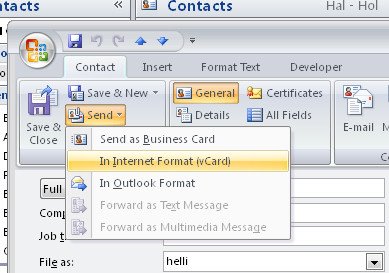
From the Contact tab on the Ribbon click the Send dropdown list and choose In Internet Format (vCard).

This opens a new message dialog with the details attached in a .vcf format file. All you need to do is to enter the recipient's email address and your message and click Send.

When the recipient receives the message, they can click the attachment to open it and add the person's details automatically to their Contacts list.

Labels: , , ,

Add to Technorati Favorites

Thursday, September 10, 2009

Outlook 2007 - Create a Custom e-mail merge

When you need to email lots of people at a time, such as your business contact list you can do this from inside Outlook.

To do this, first open your Contacts area and select the Contacts to email as a group. You can do this by Control + Clicking on each contact to select them.

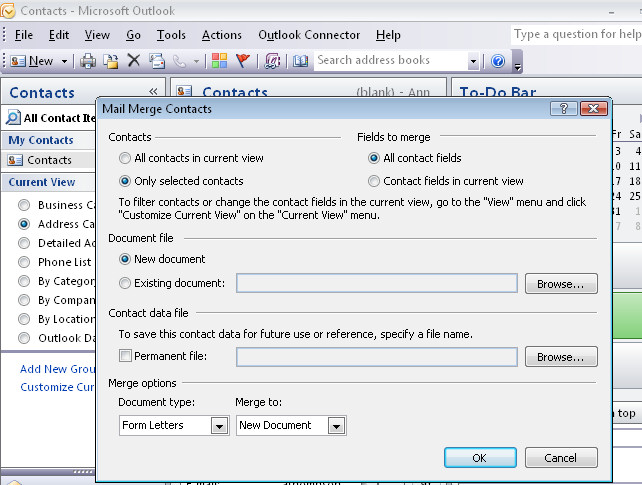
Then select Tools > Mail Merge to create the message. Choose Only Selected Contacts and then select whether to create a printed document or to email it and then click Ok to switch to Word to finish the process there.

Labels: , , ,

Add to Technorati Favorites

Thursday, September 3, 2009

Create a Distribution List in Outlook


When you regularly email a lot of people at once, it makes sense to assemble a distribution list to simplify the task. Then you can send the email to all the people in the list in one step, rather than having to select each member individually.

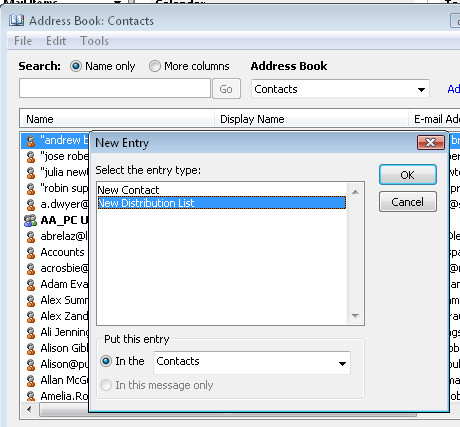
To create a distribution list in Outlook, select Tools > Address Book and choose File > New Entry.
From the "Select the entry type" list select New Distribution List.In the "Put this entry" area, select Contacts and click OK.

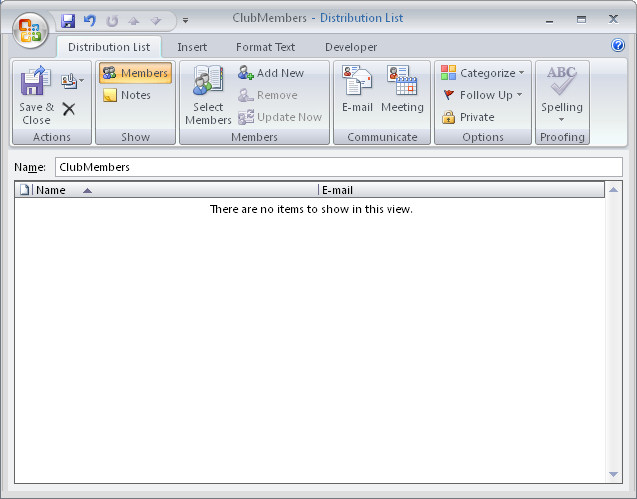
Give your list a name and, to add members to it from your existing Contacts, click the Select Members button. Double click the members in the dialog to add them to the Members area at the foot of the dialog. When you're done, click Ok.

To add the details of someone who isn't in your existing Contacts, click the Add New button, then type their details into the dialog.

When you're done, click Save & Close to finish.

In future you can add the list name to the To area in an outgoing email to send the email to the list members, or better still, include it in the BCC line to keep the members secret from each other.

Labels: , , ,

Add to Technorati Favorites

Thursday, August 27, 2009

Outlook: Create a New Contact from an Email


Adding a new person as a contact in Outlook is easy but not a self evident process.

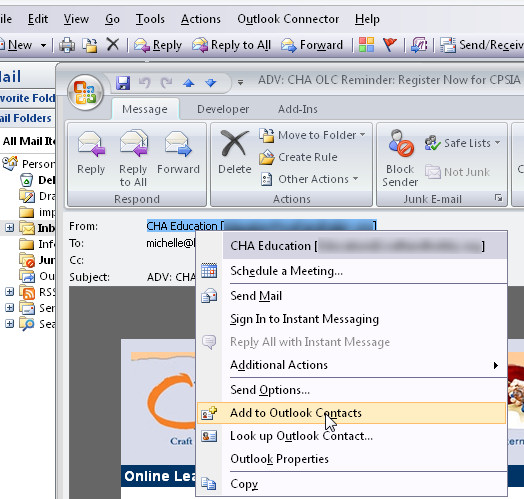
To add an email address to your Contact list from the message window, right-click the address in the From: details at the top of the screen - it doesn't look like this is clickable but it is.

Select Add to Outlook Contacts from the shortcut menu.

The Contacts dialog opens automatically with the email address in place, enter any other details you want to record and click Save & Close to end.

Labels: , , ,

Add to Technorati Favorites

Tuesday, August 25, 2009

Multiple Outlook 2007 windows

Often it is easier to work with multiple windows in Outlook 2007 rather than having to switch between modules to show just one at a time.

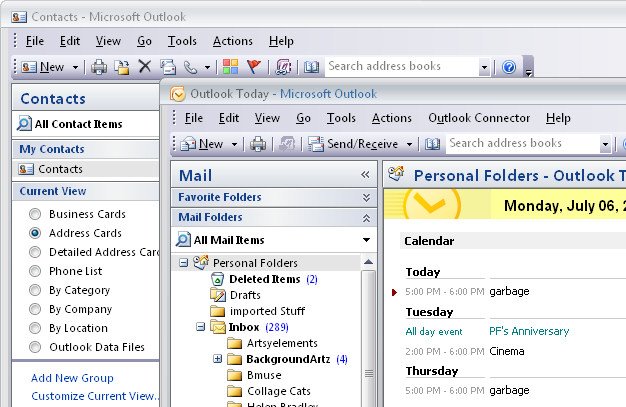
You can open each different Outlook tool in its own window if you right click the icon (eg. Calendar) in Folder view and choose Open in New Window.

Each window will display on the task bar as its appropriate icon so it's easy to switch between tools.

To ensure that each tool always opens in separate windows leave them open when you select File > Exit to close Outlook 2007. When you open the program again, all the windows will open automatically.

Labels: , , ,

Add to Technorati Favorites

Monday, August 24, 2009

Outlook Sticky Notes

Like electronic yellow stickies, Notes are useful for storing quick reminders and other information you need close at hand.

To create an Outlook note choose File > New > Note.

Type your text into the Note area. You can move the note so it's visible, or hide it by clicking the close button in its top right corner.

To view a note, click the Notes button at the foot of the pane on the left of the Outlook window and click the Note to view it.

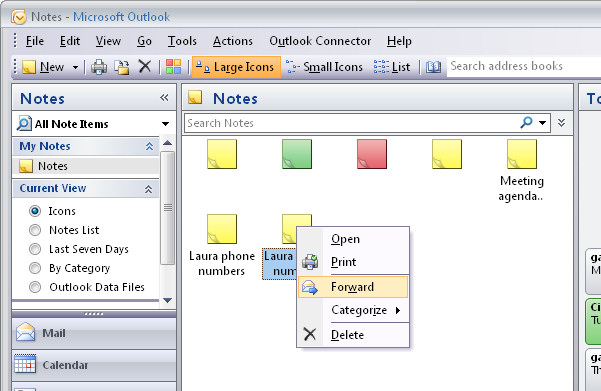
To delete a note, right click it and selecting Delete, or categorize it by right-clicking it, choose Categorize and select a category from the list.

You can send a Note to someone via e-mail by right-clicking the Note and select Forward. Outlook opens a New Mail Message window with the Note already in place as an attachment.

Labels: , , ,

Add to Technorati Favorites

Wednesday, August 12, 2009

Outlook 2007 - checking folder space

Outlook stores all your email, contacts and appointments in one big PST file. Unfortunately, working with a large PST folder in Outlook will decrease its performance.

Over time you will find that Outlook's folders grow if you don't regularly remove out of date messages from them.

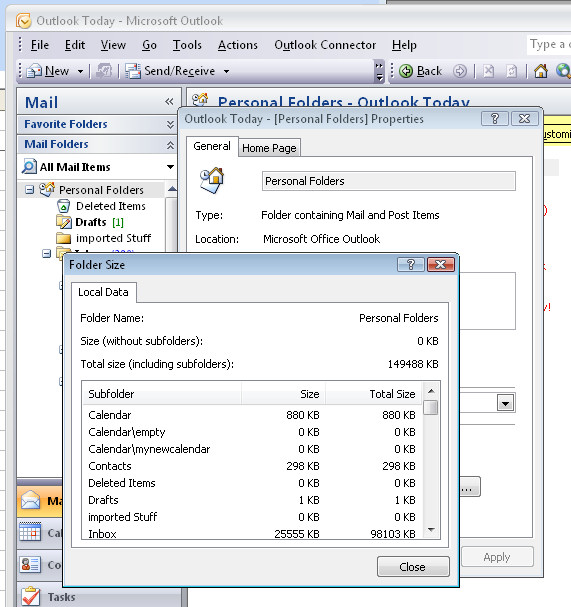
To see how big your folder is select the Mail option and click your Personal Folders item in the folders list. Right click and choose Properties for "Personal Folders" and then choose Folder Size to read the size of you PST file.

The closer to 2Gb that the file gets to be, the worse your Outlook performance will be and beyond that, it is possible that the file can become corrupt. Keep your file size below this for best performance.

Labels: , , ,

Add to Technorati Favorites

Thursday, August 6, 2009

Managing Public Holidays in Outlook


When is Memorial Day in the US or Anzac Day in Australia?

If you're unsure, luckily for you, Outlook isn't.

Most national holidays are stored in Outlook - you just need to find them and add them to your calendar.

Here's how:

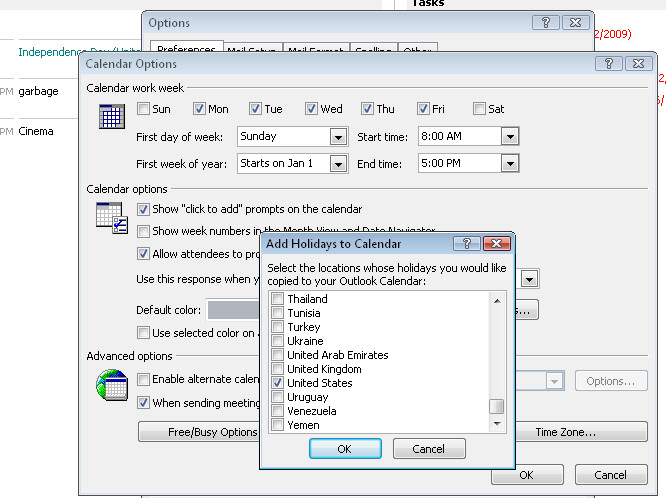
Choose Tools > Options > Preferences tab ad click the Calendar Options button.

Click the Add Holidays button and from the list choose the country (or countries) you want the holidays for and click Ok.

Wait while Outlook adds these details to your calendar and click Ok twice to exit.

The holidays will appear under the date in most Calendar views.

Labels: , , , ,

Add to Technorati Favorites